Quick start
- Open M3M3.
- Pick a photo.
- Add text.
- Adjust until it looks right.
- Save and share.
Picking a photo
Choose a photo from your library. M3M3 will ask for permission the first time.
Square format
All memes are created on a square canvas. This keeps things consistent and works well on most platforms.
Adding and editing text
Each text line can be resized independently. Big text = strong meme energy.
Two lines vs four lines
- Two lines: classic meme style.
- Four lines: more chaos, use wisely.
Rotate and flip
Rotate turns the image in 90° steps. Flip mirrors the image horizontally.
Saving your meme
When you tap save, the meme is written to your photo library.
Watermark removal
You can remove the watermark using an in-app purchase. This option is available in the app’s settings.
Privacy
Your photos stay on your device. No account needed. No sneaky stuff.
About the cat in the examples
The cat you see in the example images is named Tim.
Tim is not an AI. Tim is not judging you. Tim just helps explain memes.
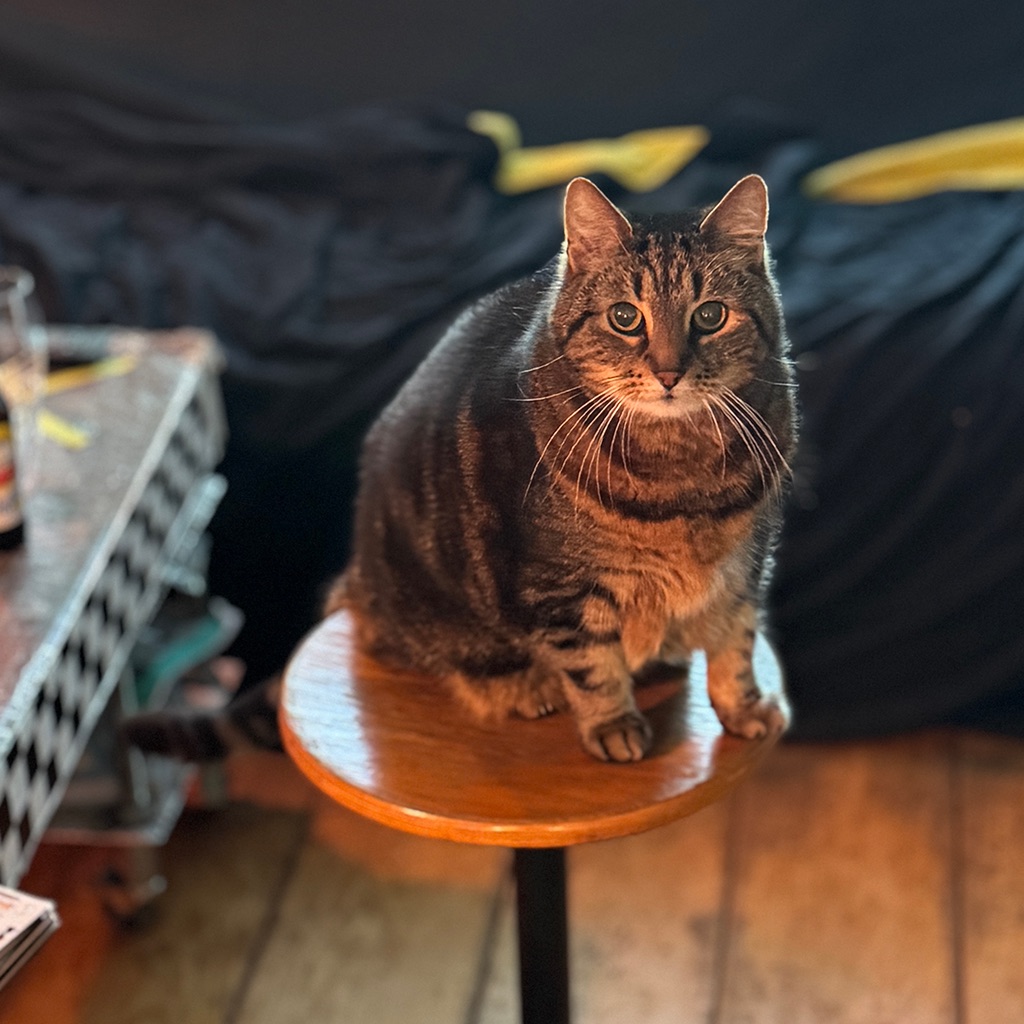
This is Tim.
Tim can has meme.